Copying Points
Once you have added remote devices to the system using one of the device copy tools, you’ll need to add points for those devices. You can copy an existing point, all of the points associated with a facility, or a subset of points associated with a facility.
You can use CygNet Explorer to copy the points in your system. Alternatively you can use the Point Configuration Manager Utility to copy the points. See Copying Points or Copying Multiple Points in the Point Configuration Manager Utility section for more information about that option.
To Copy a Single Point Using CygNet Explorer
- From CygNet Explorer, access the New Point dialog box as follows.
- Open the application and select the Point Service (PNT) in the service hierarchy (left pane) to view the PNT service contents in the right pane.
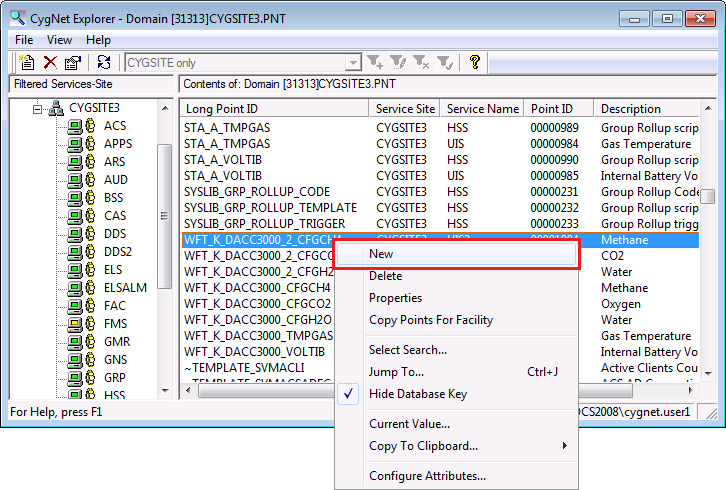
- In the PNT service pane (right pane), find and right-click on the point you want to copy to access the context menu and then select New to access the New Point dialog box. The Point ID, Long Point ID, and Description fields will be populated to match the selected point, if its Long Point ID is in the format "Facility_UDC". Otherwise those fields will be blank.
|
Click the thumbnail to see |
- In the New Point dialog box, verify, edit, or define the point properties on the General page. See PNT Editor for more information about the properties contained in each page.
- In the Site.Service box, verify the Site.Service name or click … to select the appropriate service.
- In the Facility ID box, verify the Facility ID name or click … to select the appropriate facility.
- In the Uniform data code box, verify the UDC name or click … to select the appropriate UDC. You can only select a UDC if the selected facility has UDCs mapped to it in the DDS, or if you are selecting a system UDC.
Note: Once you verify or provide valid values for Site.Service, Facility ID, Uniform data code, Point ID, Long point ID, Short description, and Long description, enter values for any additional fields. If you prefer to manually enter text into the Long point ID, Point ID, Short description, and Long description fields, those values will prevail and are not overwritten by the system.
- Verify or select the appropriate Point scheme. See Point Schemes for more information.
- Verify or select the appropriate Point type. See Point Types for more information.
- Verify or select the appropriate Primary units and Alternate units. See PNT Engineering Units for more information.
- Verify or define additional properties, as applicable to the point type and your requirements.
- Verify, edit, or define the point properties on each applicable additional page. See PNT Editor for more information about the properties contained in each page.
- Click OK when all properties are complete.
- Click Refresh for new points matching the filter to appear in the utility's listed point results.

